Welcome to NETO

Log in to your account, or sign up in a minute.

Already registered?Existing clients
New here? Sign upChoose your track Employer Employee / Freelancer

Get in touch

Pick whatever works for you · we're here.

Info & policies

Everything about NETO · transparent and available

NETO · Bareket I.T. Ltd.
Reg. 515486058 · Licensed manpower contractor #1565
Office: Sha'arei Teshuva 31, Modi'in Illit
Tel +972-8-976-1874 · neto@neto.work

Open →

Book a demo

Pick a convenient time · we'll confirm by phone/email

Choose a day
Choose a time (11:30–15:30)
Guide progress0%
System Guides · Freelancer Guide

Welcome, You Have Been Invited to Submit an Invoice · Now What?

A client invited you to submit a charge as a freelancer, and you probably do not have your own business. That is exactly why we are here: five simple steps · ending with a payslip and money in the bank. We guide you step by step until the charge is approved and submitted.

Let's Start · Step 1
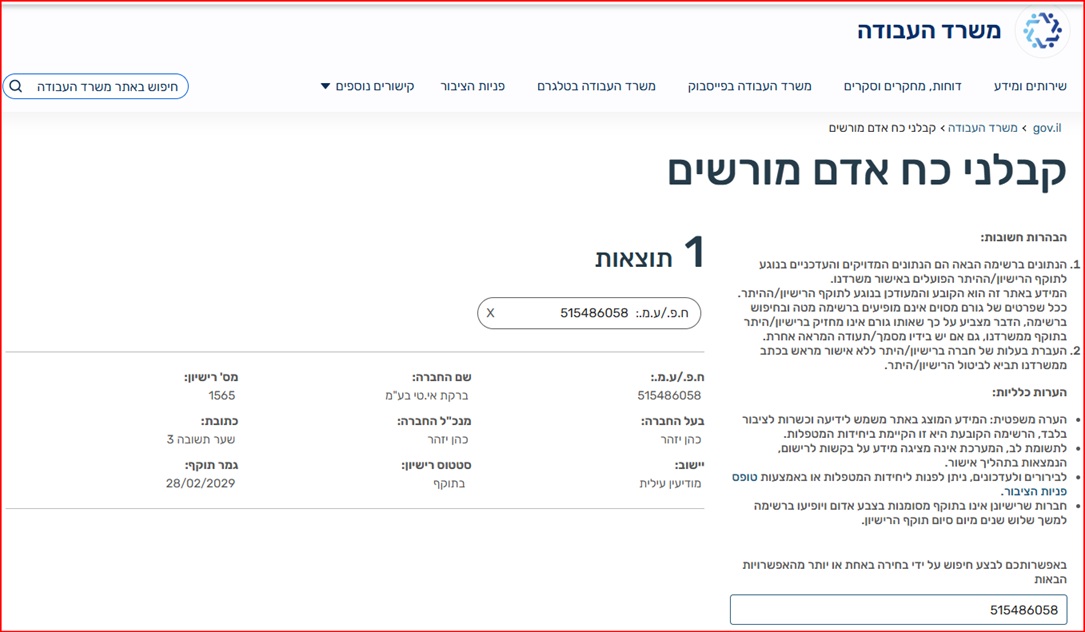
Manpower license no. 1565 Ministry of Labor supervision Wage guarantees for workers
AI summary · the guide in 30 seconds
  • What happened: a client invited you to submit a charge as a freelancer through NETO · no business needed. You enter through the personal link you received.
  • What you do: fill in Form 101 and your bank details, review the transaction and the salary simulation · then approve and send by email.
  • What you get: after the client transfers the payment through NETO · a payslip with full social rights is issued and the money goes to your bank account.
  • Full transparency: a salary simulation before you approve · you see the exact net amount. NETO's commission, 5%, is derived from the invoice amount before VAT.
  • Legal and safe: Israeli manpower contractor license no. 1565, Ministry of Labor supervision and wage guarantees. Sources: Israeli Ministry of Labor · How to issue a one-time invoice · The freelance payroll solution.

Training Video · Get Paid Without Opening a Business

Prefer to watch how it works? Here is the short walkthrough:

Preview of the training video for freelancers
1
Step 1 of 5

Welcome, You Have Been Invited to Submit an Invoice

A client invited you to submit a charge as a freelancer, and you probably do not have an independent business. That is exactly why we are here. The invitation reached you as a message with a personal link · enter through it and begin.

Good to know: Cannot find the message? Check your inbox (including spam) and your SMS messages · or ask the client to resend.
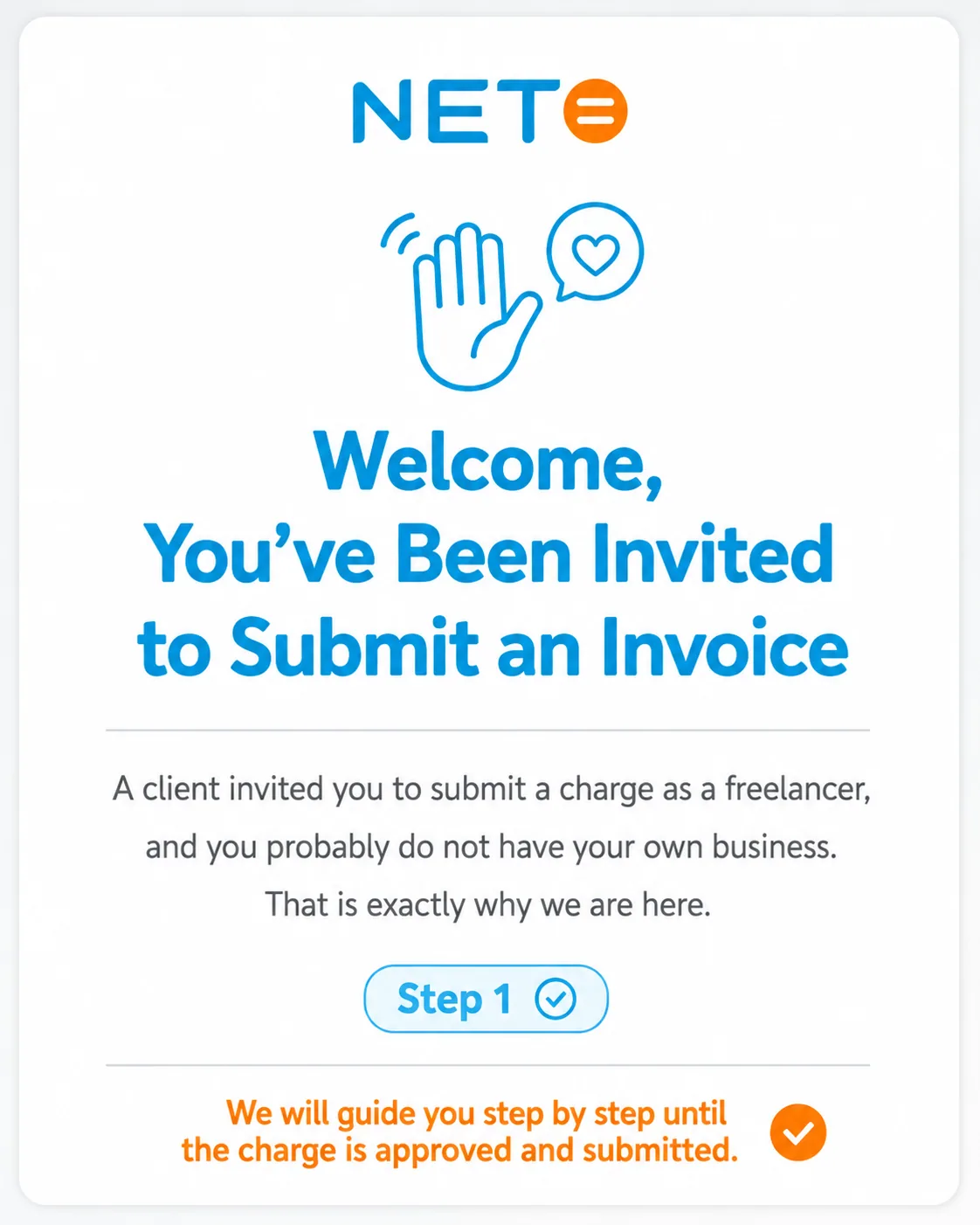
Step 1 · Welcome, you have been invited to submit an invoice
2
Step 2 of 5

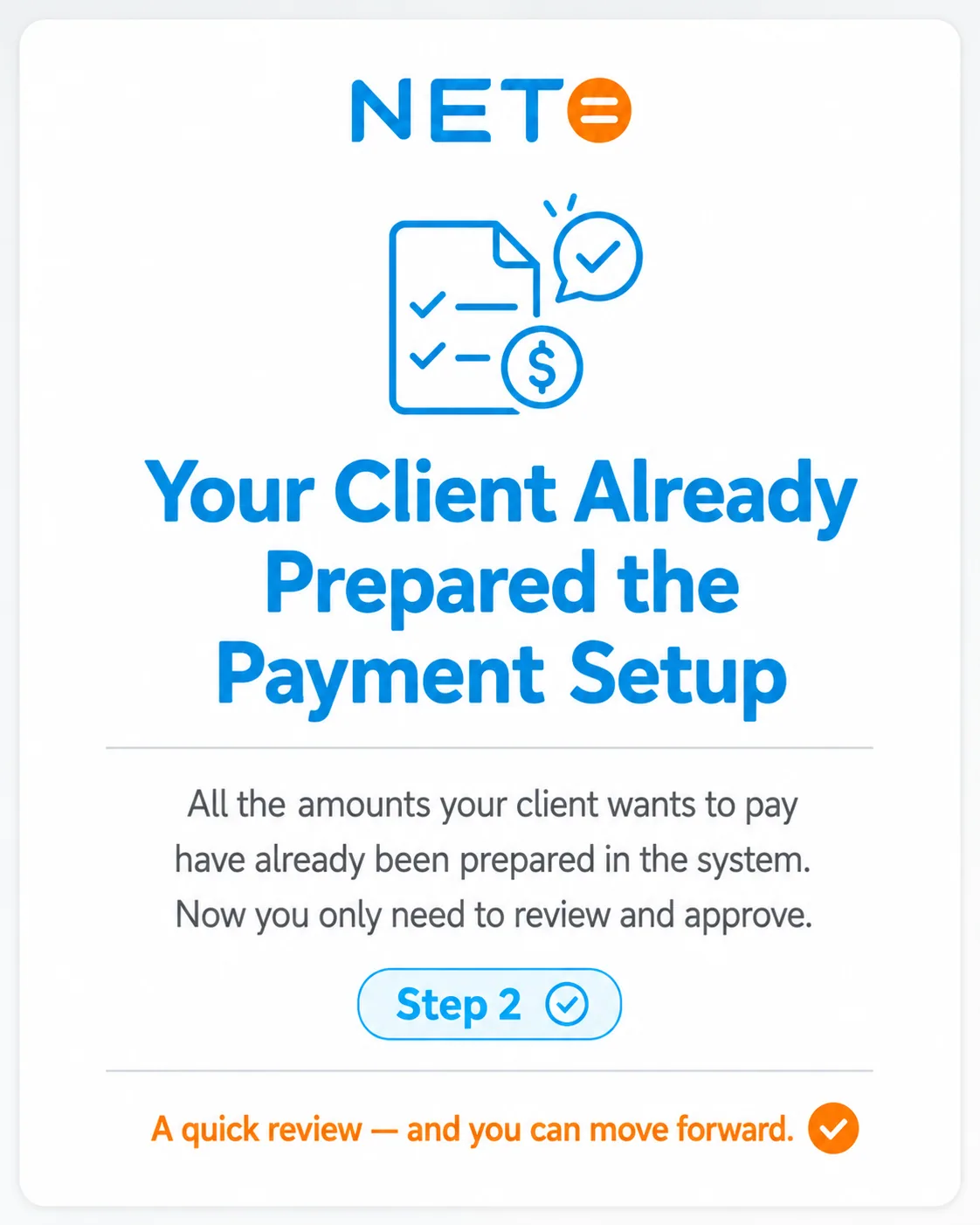
Your Client Already Prepared the Payment Setup

All the amounts your client wants to pay have already been prepared in the system. Now you only need to review and approve.

Good to know: A quick review · and you can move forward.
Step 2 · Your client already prepared the payment setup
3
Step 3 of 5

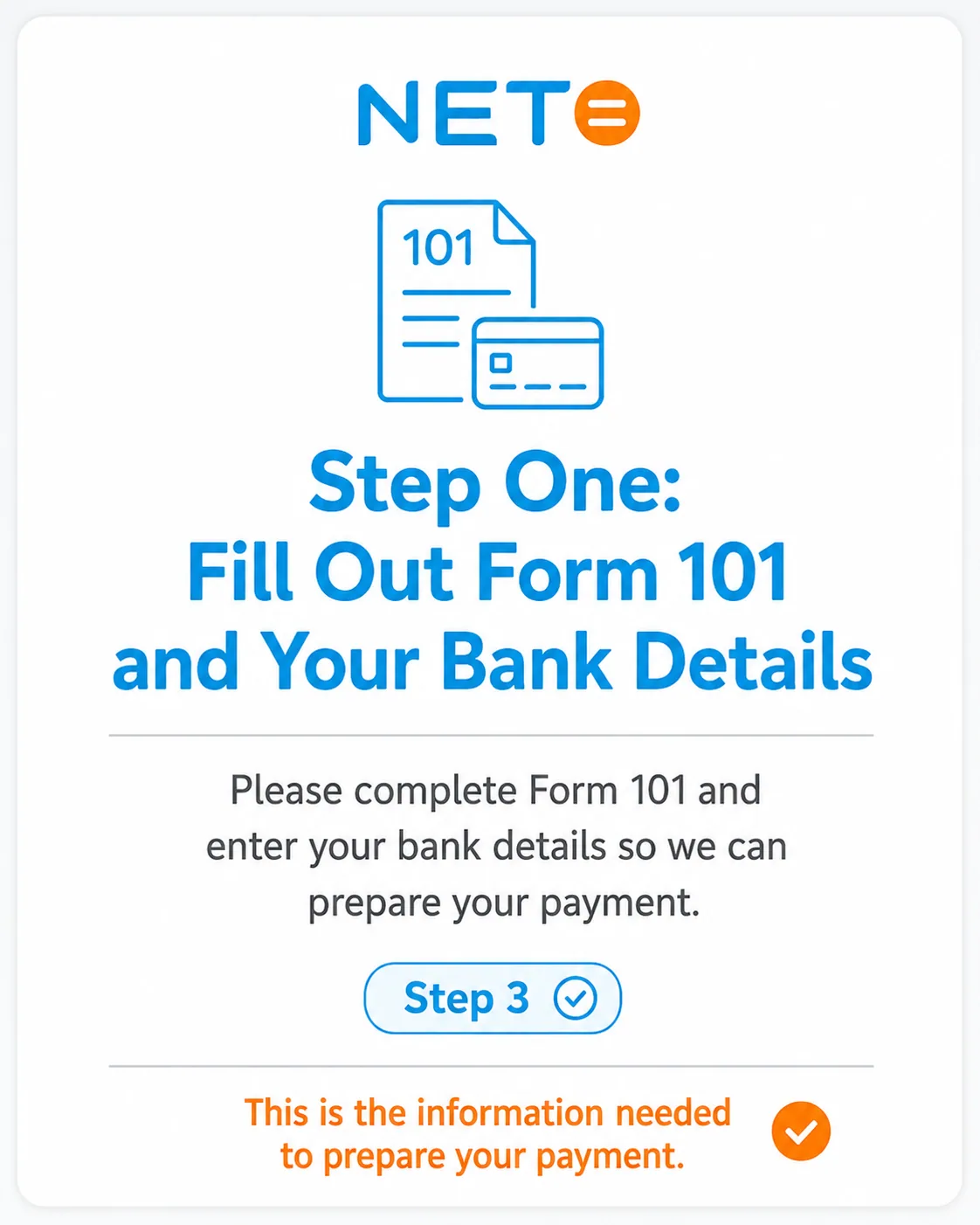
Step One in the System: Form 101 and Bank Details

Complete Form 101 (an employee card · mandatory for every salaried worker in Israel) and enter your bank details, so we can prepare your payment.

Good to know: If you have another workplace, mark it on Form 101 · it affects the tax calculation. A tax coordination can be arranged later.
Step 3 · Fill out Form 101 and your bank details
4
Step 4 of 5

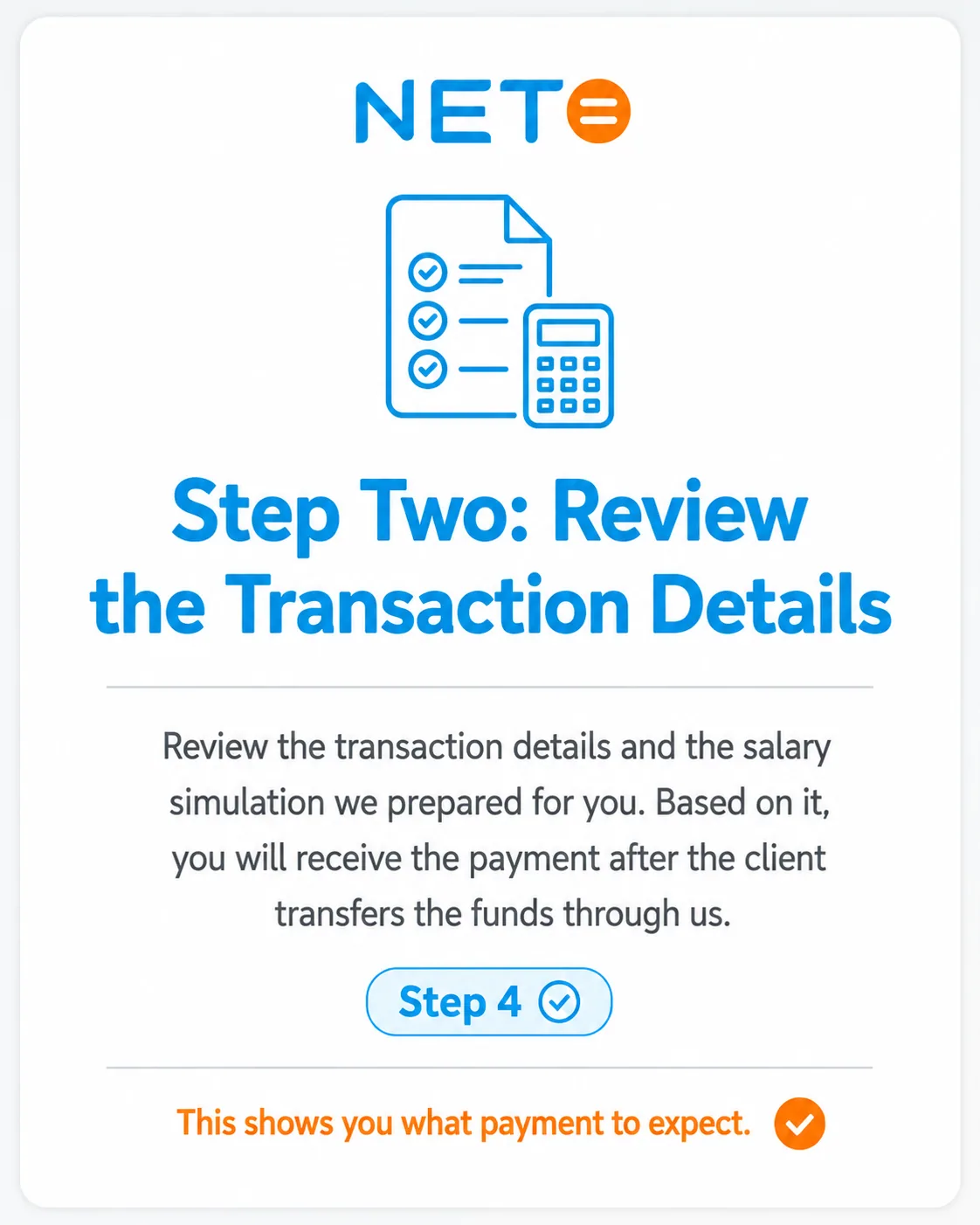
Step Two: Review the Transaction Details

Review the transaction details and the salary simulation we prepared for you. Based on it, you will receive the payment after the client transfers the funds through us.

Good to know: This shows you exactly what payment to expect · transparent, before you approve.
Step 4 · Review the transaction details and salary simulation
5
Step 5 of 5

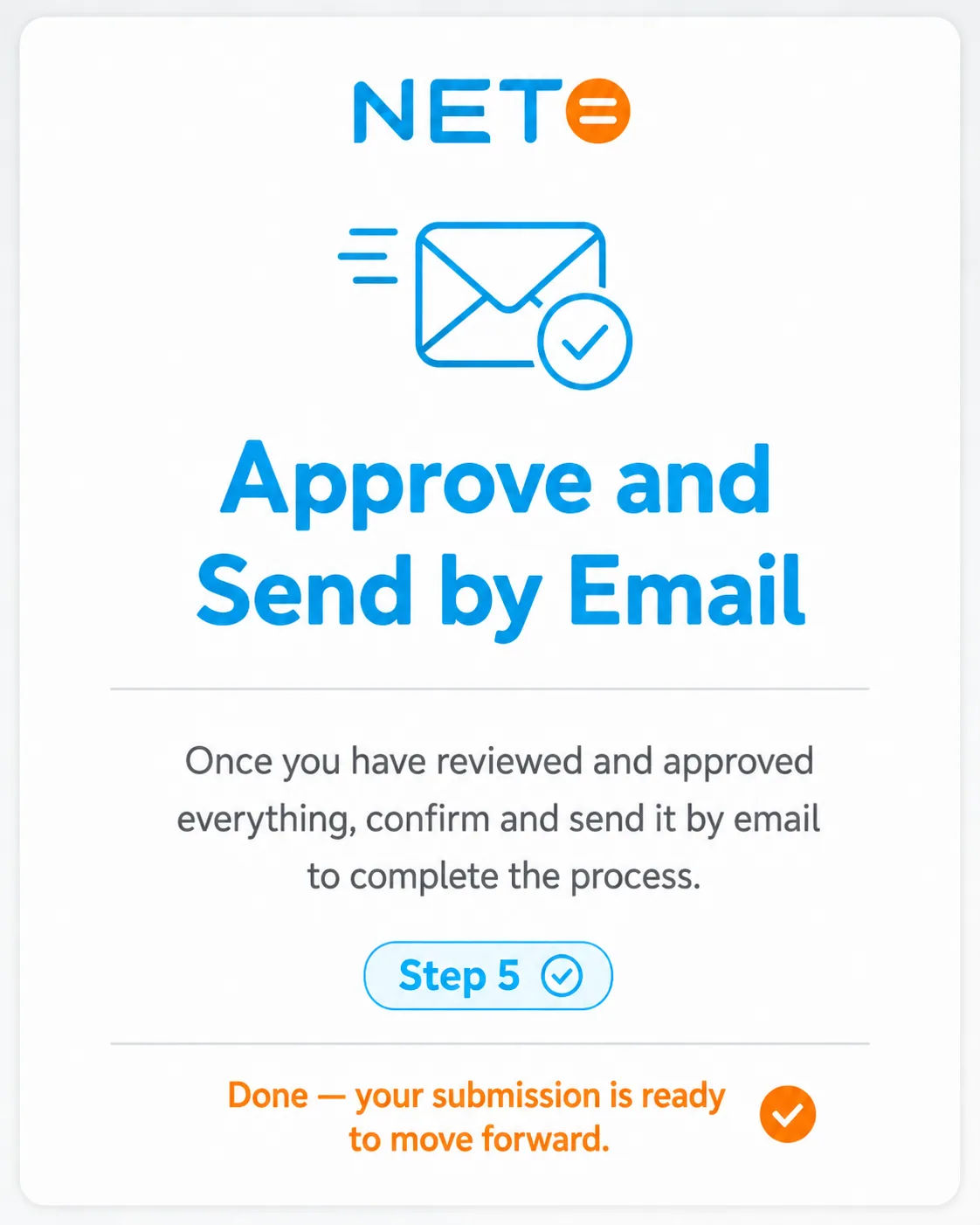
Approve and Send by Email

Once you have reviewed and approved everything, confirm and send it by email to complete the process. Done · your submission is ready to move forward.

Good to know: After the client's payment is received · a payslip is issued for you and the money is transferred to the bank account you entered.
Step 5 · Approve and send by email

What It Looks Like Inside the System

The two main screens you will meet in your personal area · the invoice form and your invoices list.

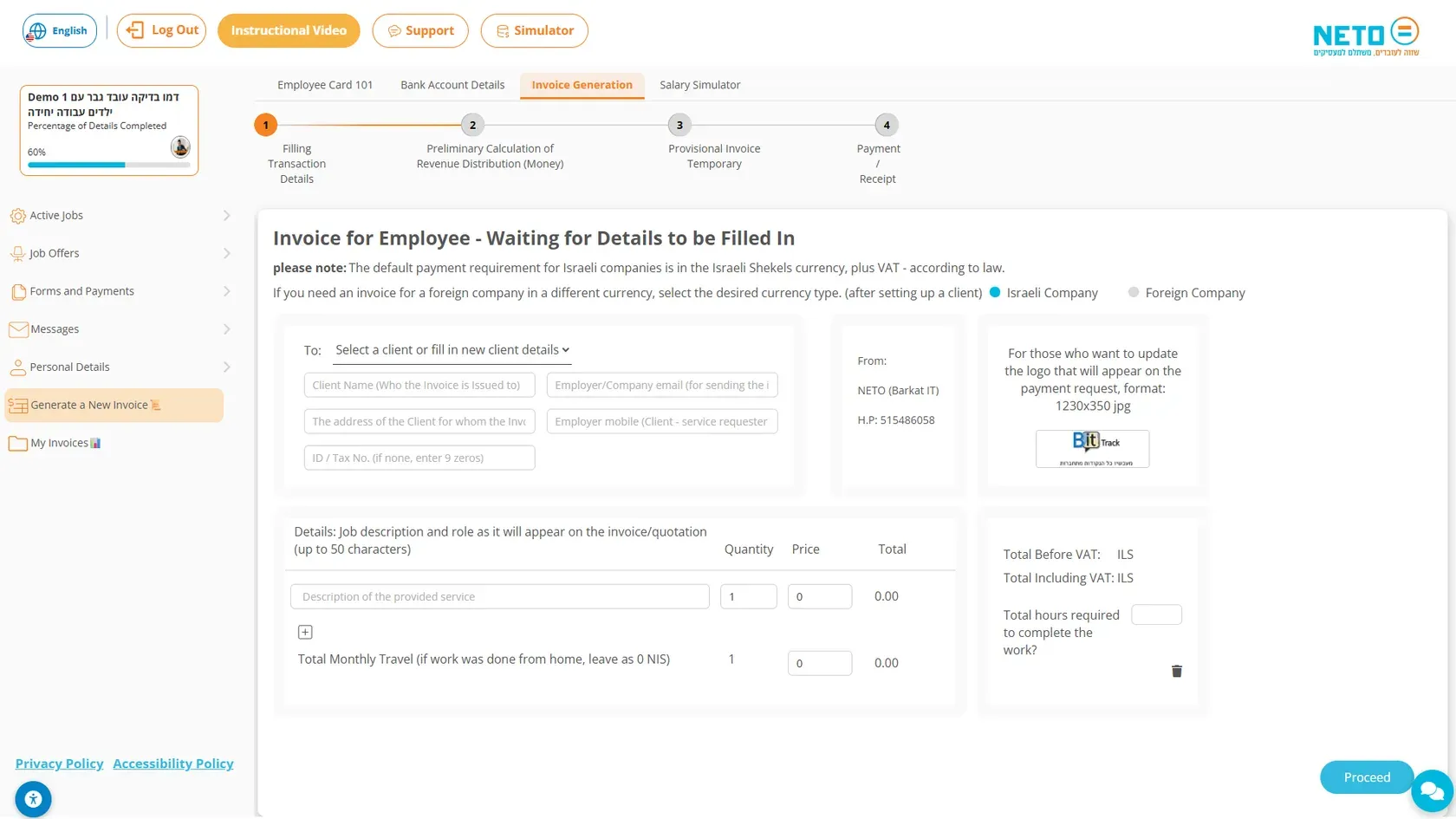
The Generate a New Invoice screen in the NETO system · the form for filling in client and transaction details
The "Generate a New Invoice" form · here you fill in the client details, the job description and the amount.
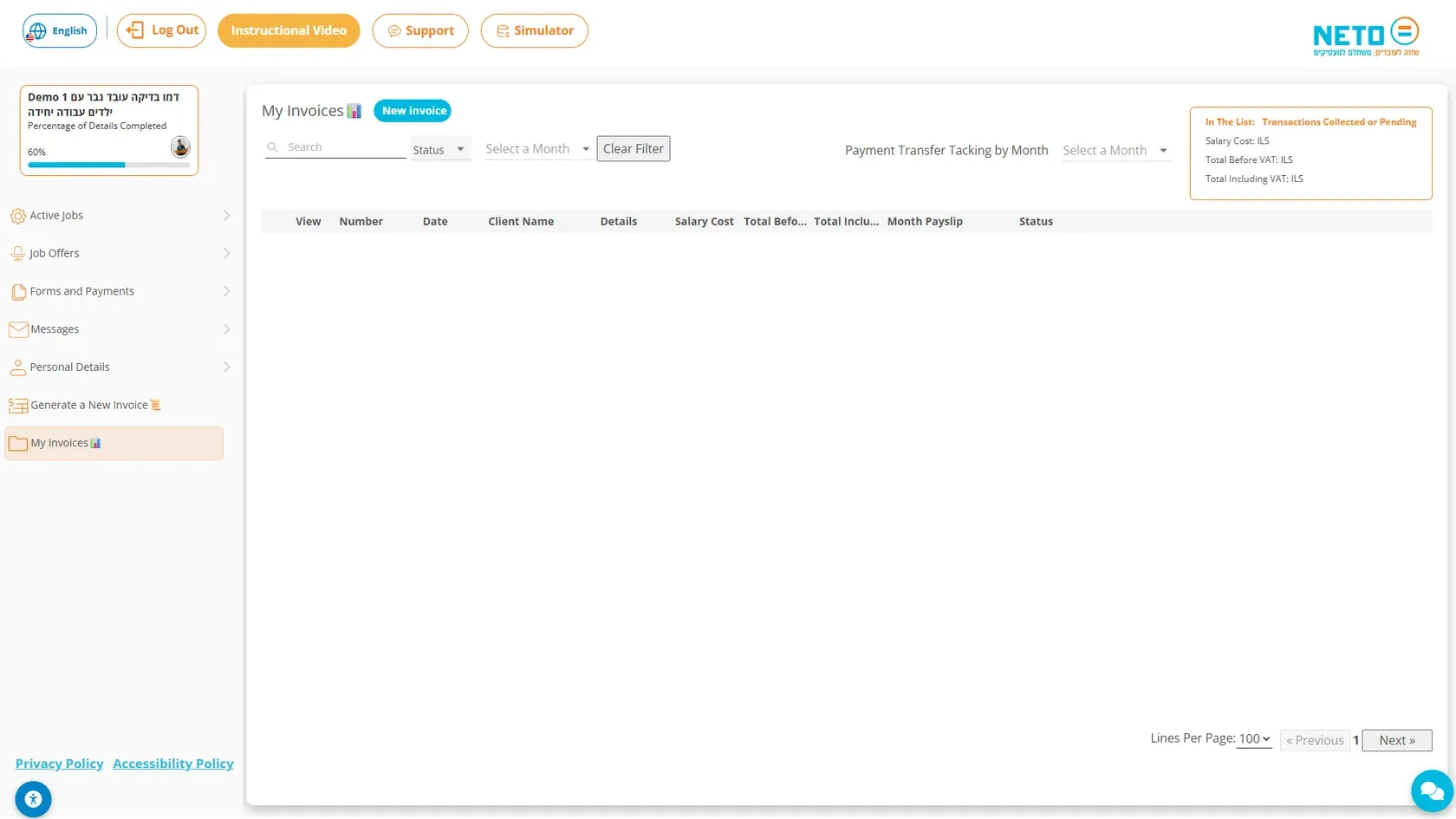
The My Invoices screen in the NETO system · tracking all invoices and payments
The "My Invoices" screen · all your invoices, statuses and payment tracking in one place.

Related Guides · Where to Go Next

Freelancer FAQ

I do not have a registered business · is that OK?
Yes, that is exactly the idea. You register on NETO as a salaried worker, NETO issues your client a lawful tax invoice, and you receive a payslip with full social rights · without opening a tax file.
What is Form 101 and why is it needed?
Form 101 is an employee card that every salaried worker in Israel fills in at the start of employment and every year. It is required to calculate your tax correctly, and it is completed online inside the system in a few minutes.
How much money will I actually receive?
Before you approve, an exact salary simulation shows what you will receive net, after taxes and contributions. NETO's commission, 5%, is derived from the invoice amount the client pays (before VAT).
When does the money reach my account?
After you approve and send, the client transfers the payment through NETO. Once the payment is received and the documents are complete, a payslip is issued and the salary is transferred to the bank account you entered.
Is it legal and safe?
Yes. NETO holds manpower contractor license no. 1565 from the Israeli Ministry of Labor, is regulated and audited, and deposits wage guarantees for its workers · so your money is protected.
Which social rights do I receive?
As a salaried worker of NETO you receive a payslip that includes full rights by law, including national insurance, health tax and pension contributions according to the rules.
Can I work this way with more clients?
Absolutely. Register independently, open a payment request for any client and issue invoices through NETO regularly · without opening a tax file. Start with a free registration and simulation.

Summary · The Whole Process in Five Lines

  1. Enter through the personal link you received from your client.
  2. Fill in Form 101 and enter your bank details.
  3. Review the transaction details and the salary simulation · you see the exact net amount.
  4. Approve and send by email · your submission is on its way.
  5. The client pays through NETO · a payslip with full rights is issued and the money is transferred to your bank.

Want to invoice more clients this way? Register free, create a payment request and see a salary simulation immediately · without opening a tax file, with no subscription fees, with the full rights of a salaried worker.

Stuck? Have a question? We are here

The NETO support team accompanies you at every step · by phone, WhatsApp or the smart assistant in the corner of the screen.

About this guide: Written by the NETO team, led by Izhar Cohen, founder of NETO (Net For Life Ltd) · manpower contractor license no. 1565 · operating since 2016. Last updated: 05 Aug 2026.
About the author
Yizhar CohenYC
Yizhar CohenEntrepreneur · CEO and Founding Partner at NETO

I founded NETO to turn complex employment and payment processes into something simple, clear and legal for everyone. Good service starts with human understanding, combined with smart technology and personal attention.

Connect on LinkedIn
Have a question? Let's talk.
Topics