Welcome to NETO

Log in to your account, or sign up in a minute.

Already registered?Existing clients
New here? Sign upChoose your track Employer Employee / Freelancer

Get in touch

Pick whatever works for you · we're here.

Info & policies

Everything about NETO · transparent and available

NETO · Bareket I.T. Ltd.
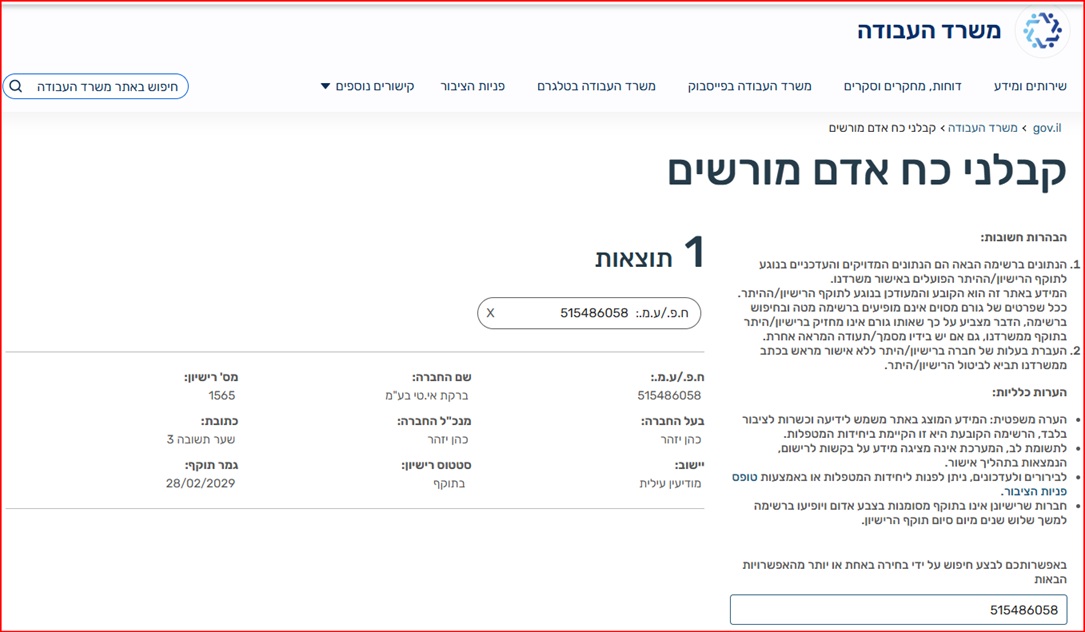
Reg. 515486058 · Licensed manpower contractor #1565
Office: Sha'arei Teshuva 31, Modi'in Illit
Tel +972-8-976-1874 · neto@neto.work

Open →

Book a demo

Pick a convenient time · we'll confirm by phone/email

Choose a day
Choose a time (11:30–15:30)
Guide progress0%
System guides · Mobile freelancer guide

Issue an invoice to a client · straight from your phone

Finished a job and want to get paid, but have no registered business? Issue the invoice through NETO from your phone's browser: log in, fill in the transaction and client details, approve the calculated payout and track everything in My Invoices · five short steps, with real phone screenshots.

Let's start · step 1
AI summary · the guide in 30 seconds
  • What this is: a freelancer with no registered business issues an invoice to a client through NETO · entirely on a phone. NETO, the formal employer under manpower licence No. 1565, issues the invoice and pays you salary on a payslip.
  • Step 1: log in from the phone browser and tap Log In as an Employee / Freelancer.
  • Step 2: in Invoice Generation, choose Israeli Company (shekels plus VAT by law) or Foreign Company with the desired currency.
  • Step 3: fill in the client's details and the transaction lines · job description, quantity and price · with NETO's details in the From section as the issuer.
  • Step 4: the system calculates the deal · gross for the payroll slip, employer's pension and national insurance and the NETO site commission of 5% before VAT · and awaits your final approval.
  • Step 5: My Invoices tracks every invoice by search, status and month · including the totals before and including VAT.
  • Cost and trust: NETO's fee is 5% before VAT. Source: licence No. 1565 details and verification.
1
Step 1 of 5

Log in from your phone

Open the NETO.LIVE login screen in your phone's browser. Keep "Israeli phone number" selected (or switch to "Non-Israeli phone number"), enter your phone and password and tap Log In as an Employee / Freelancer.

Good to know: the language button at the top switches the interface language, and "Forgot password" resets your password by message. First time here? Use the "Register as an employee" button on the same screen.
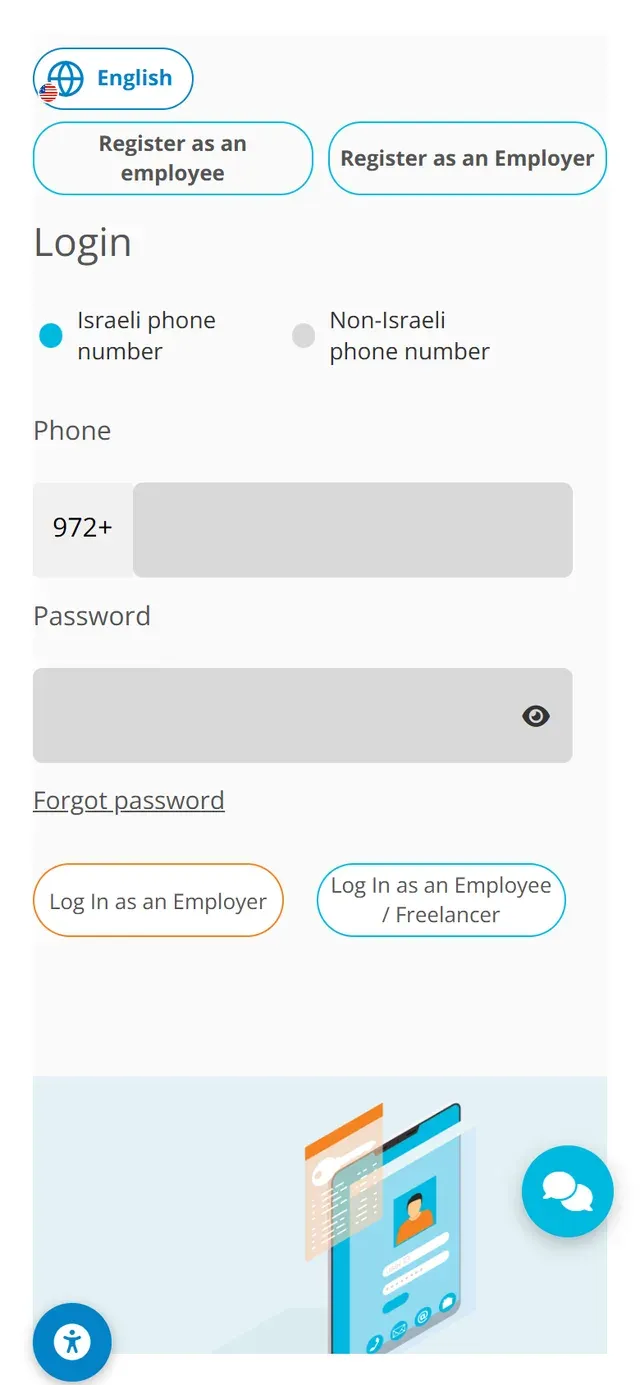
Step 1 · the NETO login screen on a phone, with Log In as an Employee / Freelancer
2
Step 2 of 5

Generate a new invoice

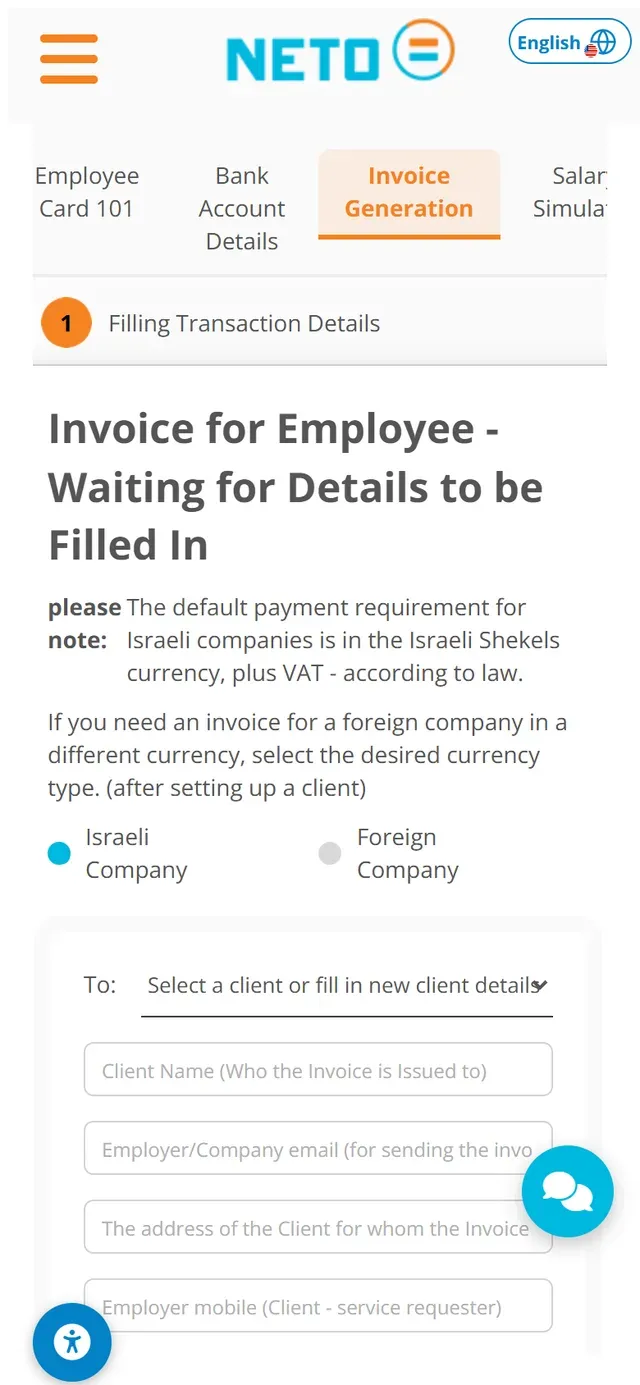
Open the Invoice Generation tab (Employee Card 101, Bank Account Details and Salary Simulation sit alongside it) and start Filling Transaction Details. The default for Israeli companies is shekels plus VAT, as required by law; for a foreign company, select Foreign Company and choose the desired currency after setting up the client.

Good to know: the Data Cleaning / New Transaction button clears the form · handy when you want to start a fresh transaction at any point.
Step 2 · the Invoice Generation tab on a phone: transaction details and client selection
3
Step 3 of 5

Client details, currency and transaction lines

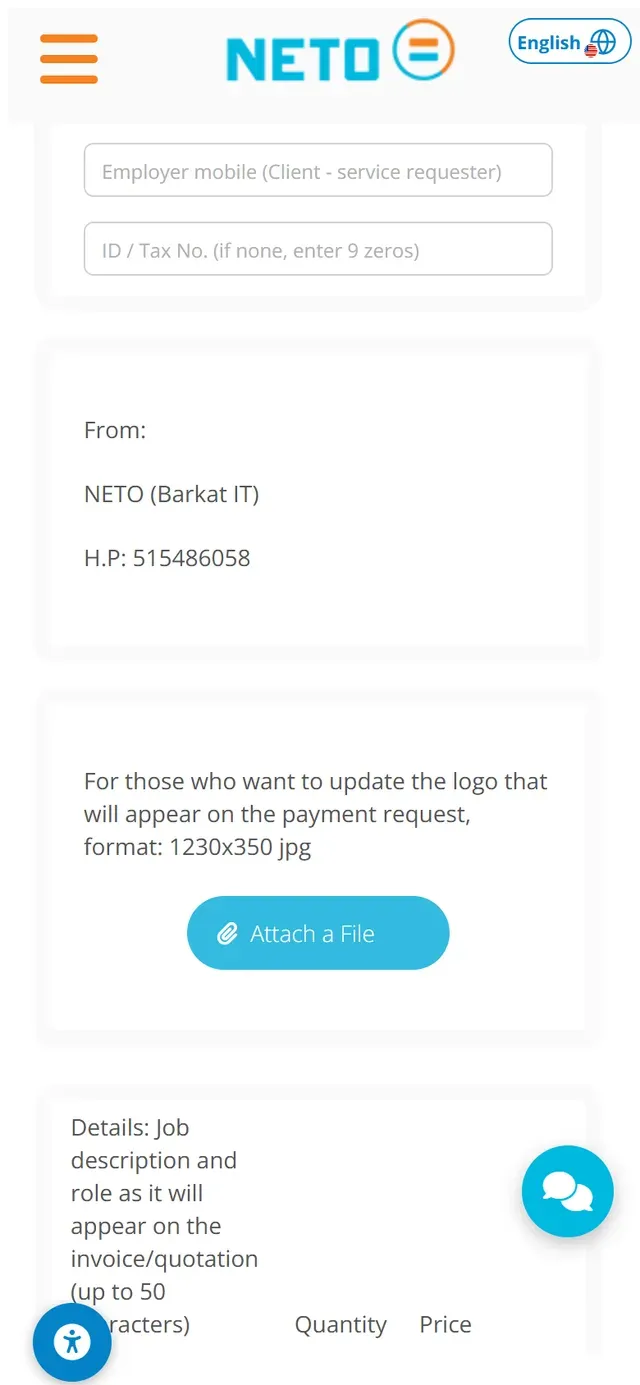
Pick an existing client or fill in new details: client name, company email for sending the invoice, address, mobile and ID or tax number (if none, enter 9 zeros). Scrolling on, the From section shows the issuer's details, you can attach a logo for the payment request, and the transaction lines take the job description (up to 50 characters), quantity and price.

Good to know: the invoice is issued by NETO as the formal employer, which is why its details appear in the From section · you get the money as salary on a proper payslip, no business needed.
Step 3 · the invoice form continued: issuer details, logo upload and transaction lines
4
Step 4 of 5

Payout calculation · final approval

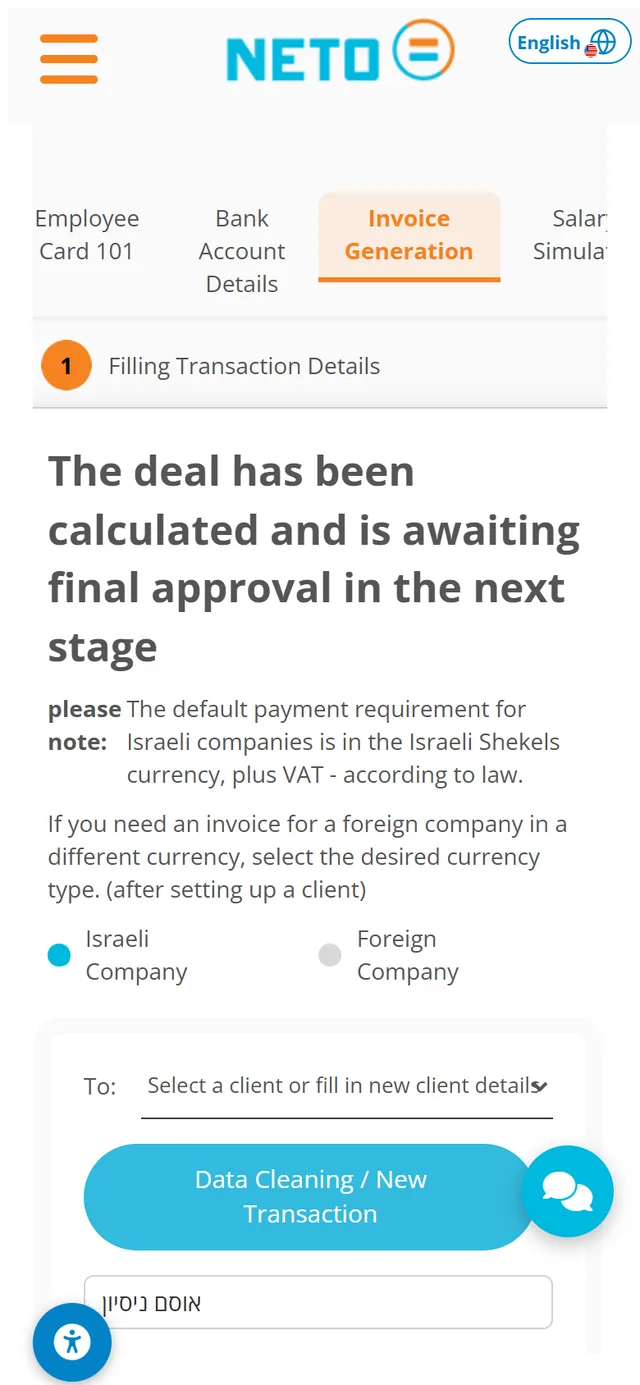
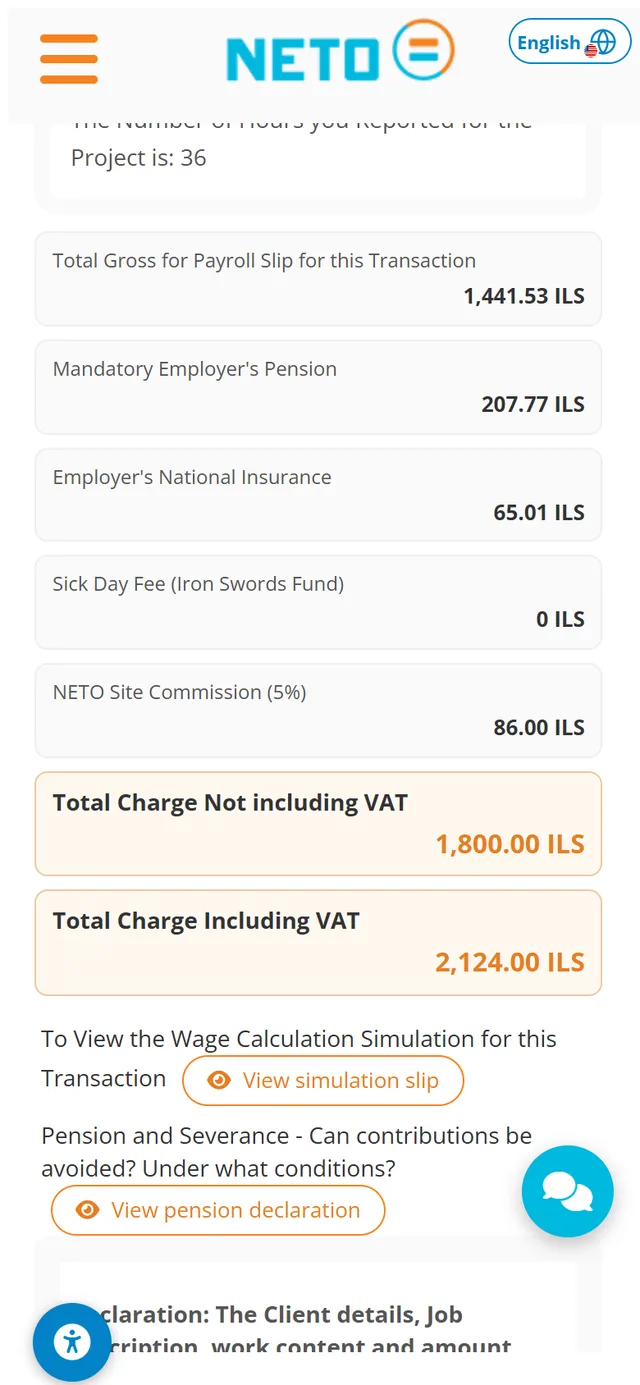
Once the transaction details are in, the system calculates the deal · and it awaits your final approval in the next stage. The breakdown keeps everything transparent: the total gross for the payroll slip, the mandatory employer's pension, the employer's national insurance and the NETO site commission · 5% before VAT.

Below the breakdown, the totals are shown not including and including VAT, next to a View simulation slip button for the full wage calculation and a View pension declaration button explaining when pension and severance contributions can be avoided.

Good to know: before the invoice is issued, the system may present a freelancer declaration or a VAT declaration for a digital signature · a signature pad right on screen. And if your Form 101 is not up to date, a popup offers a quick signing or completing the form first.
Step 4 · the deal has been calculated and awaits final approval, with the Israeli or Foreign Company choice
Step 4 · the payout breakdown on a phone: gross, pension, national insurance, the 5% site commission and the totals with VAT
5
Step 5 of 5

Track everything in My Invoices

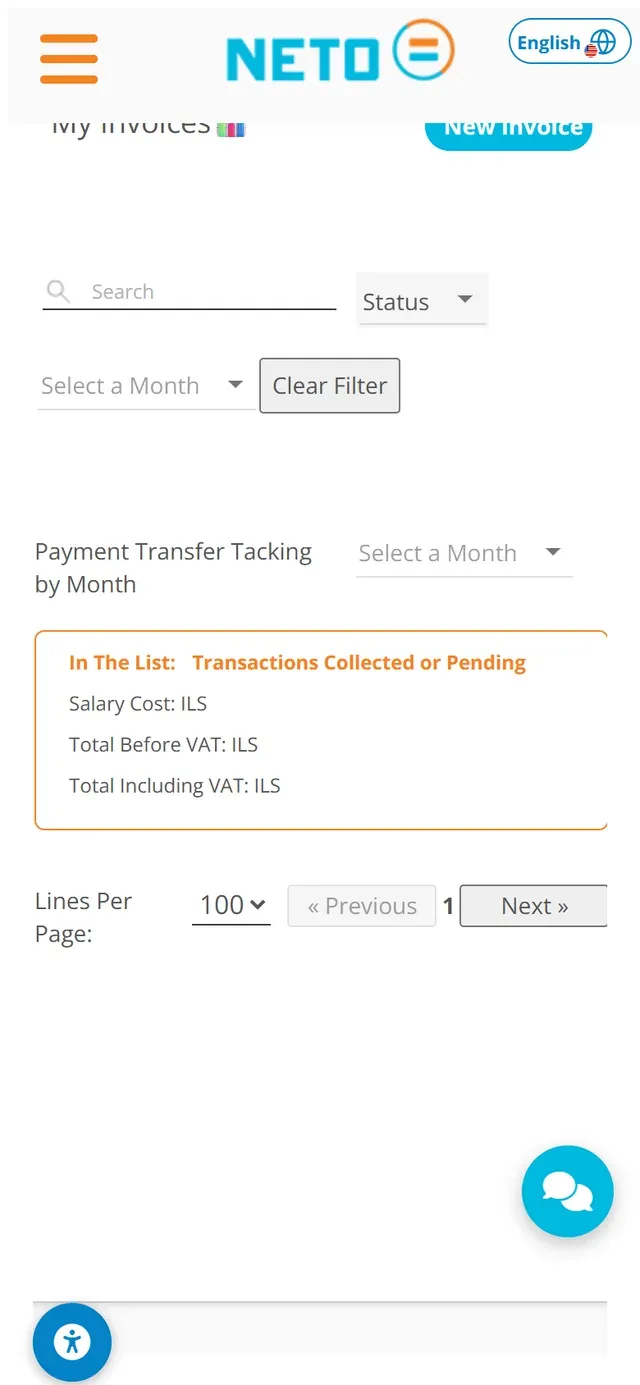
The My Invoices screen is your control panel: search, filter by status or month, and open a new invoice with the New Invoice button. Below the list, Payment Transfer Tracking by Month shows the transactions collected or pending · with the salary cost and the totals before and including VAT.

Good to know: use the month filter to see exactly what was collected in each month · the picture your accountant would want is already there, transparent and printable.
Step 5 · the My Invoices screen on a phone with filters and payment tracking by month

Prefer to watch it?

A short vertical video made for your phone.

Related guides · where to go from here

Frequently asked questions from freelancers

Can I do all of this on a desktop computer too?
Yes. The system works the same in a desktop browser, and the full five-step walkthrough · including the payout breakdown and getting paid · is in the NETO freelancer guide.
I have no registered business. Can I still issue an invoice?
Yes. The invoice is issued by NETO, your formal employer under manpower licence No. 1565, and you receive the money as salary on a proper payslip with full social benefits. There is no need to open a business. Licence details and verification.
Can I invoice a foreign client in a foreign currency?
Yes. The default for Israeli companies is shekels plus VAT, as required by law. For a foreign company, select Foreign Company on the invoice screen and choose the desired currency after setting up the client.
What does the service cost?
NETO's fee is 5% before VAT. The My Invoices screen keeps the full picture transparent: the salary cost and the totals before and including VAT, month by month.

Summary · the whole process in five lines

  1. Log in from your phone's browser and tap Log In as an Employee / Freelancer.
  2. In Invoice Generation, fill in the transaction details · Israeli or foreign, in the right currency.
  3. Add the client's details and the transaction lines · description, quantity and price.
  4. Review the calculated payout · including the 5% site commission before VAT · and give final approval.
  5. Track statuses and monthly totals in My Invoices · and open the next invoice with one tap.

Have a question about one of the steps? The NETO support team is available by phone, on WhatsApp and through the contact form · and we will gladly walk you through until everything is set.

Stuck? Have a question? We are here

The NETO support team walks you through every step · by phone, on WhatsApp or through the smart assistant in the corner of the screen.

About this guide: written by the NETO team, led by Izhar Cohen, founder of NETO (Net for Life Ltd.) · manpower licence No. 1565 · operating since 2016. Last updated: 12 Aug 2026.
About the author
Yizhar CohenYC
Yizhar CohenEntrepreneur · CEO and Founding Partner at NETO

I founded NETO to turn complex employment and payment processes into something simple, clear and legal for everyone. Good service starts with human understanding, combined with smart technology and personal attention.

Connect on LinkedIn
Have a question? Let's talk.
Topics